ClassFetch is a free, open-source browser extension for Chrome, Edge, and Firefox. Open any Classroom stream or post, click the ClassFetch icon, and grab every Drive attachment at once.
Why?
The goal was simple, to let users select multiple files and download them in one click instead of having to click on each file and downloading it one by one.
How to install?
From browser extension store


From GitHub releases
- Download the latest release from the Releases page. Get the
.zipasset (not the source code!) - Unzip it somewhere permanent. Browsers load the extension from that folder, so don’t delete or move it afterwards. The folder you load must be the one that directly contains
manifest.json - Follow the steps for your browser:
Chrome
- Open
chrome://extensions - Turn on Developer mode (top-right toggle)
- Click Load unpacked and select the unzipped folder
Edge
- Open
edge://extensions - Turn on Developer mode (left sidebar toggle)
- Click Load unpacked and select the unzipped folder
Brave
- Open
brave://extensions - Turn on Developer mode (top-right toggle)
- Click Load unpacked and select the unzipped folder
Firefox
- Open
about:debugging#/runtime/this-firefox - Click Load Temporary Add-on
- Select the
manifest.jsonfile inside the unzipped folder
Firefox removes temporary add-ons when the browser closes, so you’ll need to load it again after each restart
After installing or updating
- Reload any open Google Classroom tab so the extension is picked up
- To update, download the new release, replace the old folder’s contents, then click the reload icon on the extension’s card (Chrome/Edge/Brave) or Reload (Firefox) on the same extensions page
How to use?
- Open a Google Classroom post or stream with Drive attachments, and scroll so the attachments load
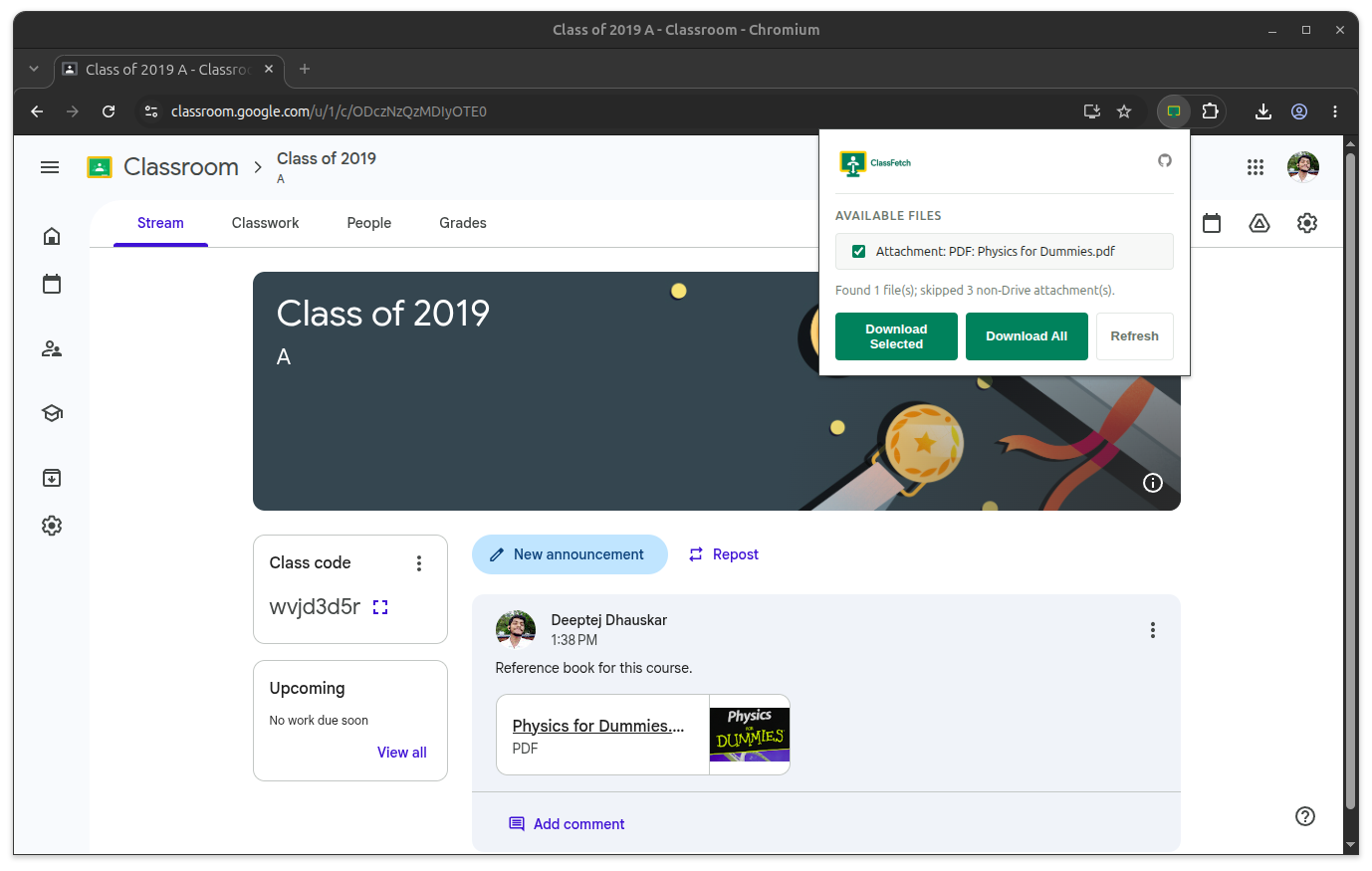
- Click the ClassFetch toolbar icon. Files that ClassFetch can download are listed with checkboxes
- Check the files you want and click Download Selected, or click Download All
FAQ
My files aren’t showing up, even though they’re in the stream. Scroll the stream so the attachment actually renders, then press Refresh in the popup. ClassFetch only downloads real Google Drive file attachments — Google Slides/Docs links are skipped and counted as “skipped.”
A downloaded file was flagged as .htm rather than the real file.
The file’s owner disabled downloads for it. Ask them to allow it.
Privacy
See the Privacy Policy — ClassFetch collects no data.